Getting to know devices
Students learn the parts of a computer or tablet and how to use a mouse, keyboard, or touchscreen. They practice simple fixes when something does not work, like checking the power or closing an app.
This is when students first see a computer as a tool they can direct, not just a screen they watch. Students learn the names of basic parts like the keyboard and mouse, and they practice simple fixes when something goes wrong. They write short step-by-step instructions to make a character move or a task happen, and they talk about being kind and safe online. By spring, students can give a clear set of steps that tells a computer or a classmate how to finish a small task.
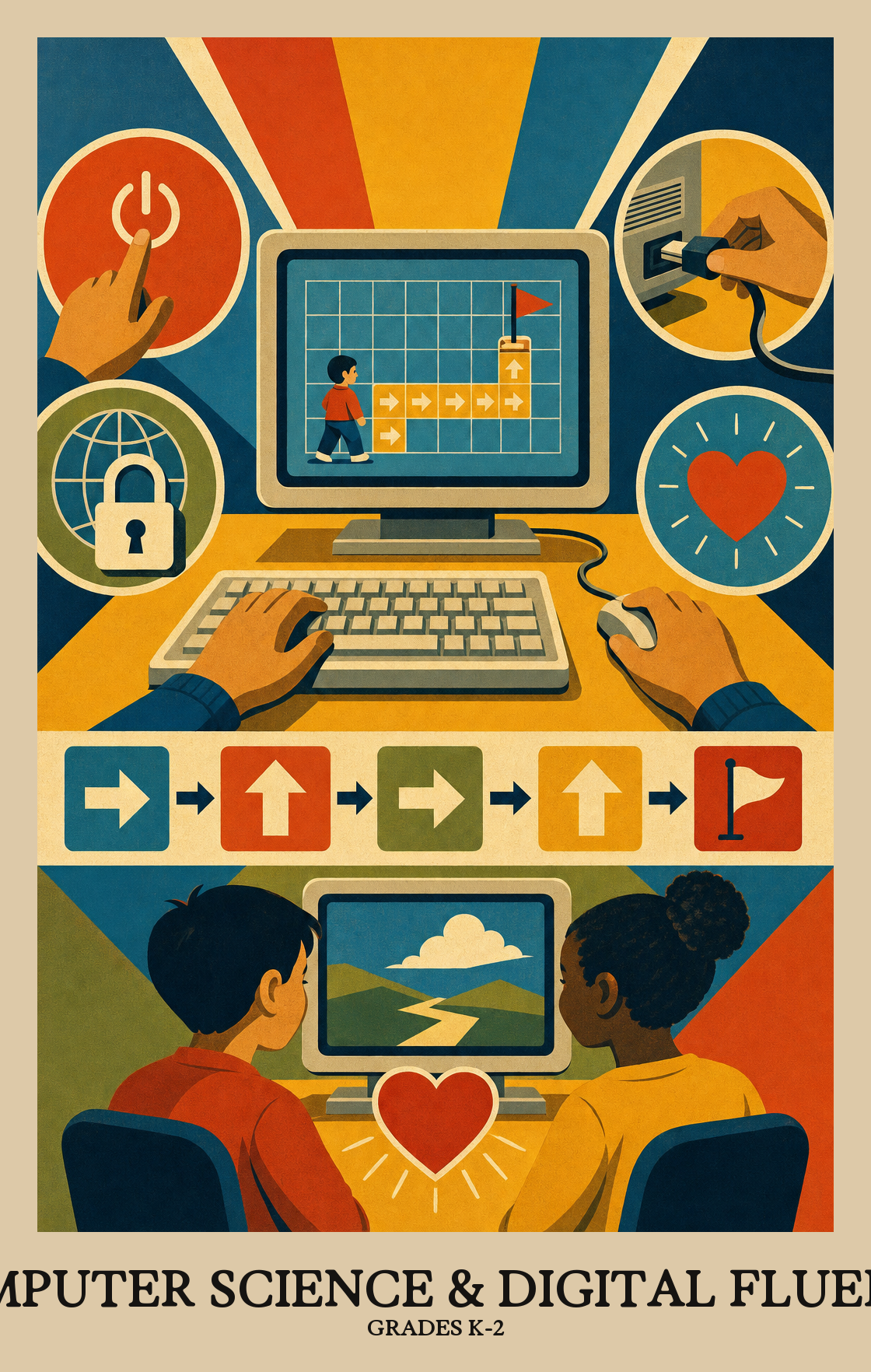
Students learn the parts of a computer or tablet and how to use a mouse, keyboard, or touchscreen. They practice simple fixes when something does not work, like checking the power or closing an app.
Students learn how computers and the internet help people share messages and pictures. They practice keeping passwords private and asking an adult before sharing personal information.
Students collect simple information, like favorite snacks or weather each day, and put it into charts or pictures. They look for patterns and talk about what the data shows.
Students break tasks into small steps and put them in order, the way a computer would follow them. They build short programs using blocks or arrows and fix the steps when something goes wrong.
Students plan a small project with a partner, share ideas, and listen to feedback to make it better. They talk about how technology affects people and how to be kind online.
Students learn what the different parts of a computer do, pick the right tools or programs for a task, and figure out simple fixes when something stops working.
Students learn what the internet actually is: a giant web of connected computers that lets people send messages, share files, and work together from different places. They also talk about why keeping that information safe matters.
Students gather information, sort it into a chart or picture, and look for patterns. Then they use what they see in the data to explain or support an idea.
Students practice breaking a task into steps so a computer can follow them, then check whether those steps actually work.
Students look at how computers and apps affect daily life and talk about what's fair, helpful, or harmful about the way people use them.
| Standard | Definition | Code |
|---|---|---|
| Identify, select, and apply hardware, software Grades K-2 | Students learn what the different parts of a computer do, pick the right tools or programs for a task, and figure out simple fixes when something stops working. | DC-CSDF.C1.k-2 |
| Explain how computer networks and the Internet enable communication… Grades K-2 | Students learn what the internet actually is: a giant web of connected computers that lets people send messages, share files, and work together from different places. They also talk about why keeping that information safe matters. | DC-CSDF.C2.k-2 |
| Collect, transform, and represent data Grades K-2 | Students gather information, sort it into a chart or picture, and look for patterns. Then they use what they see in the data to explain or support an idea. | DC-CSDF.C3.k-2 |
| Design, develop, and analyze algorithms and programs to solve problems… Grades K-2 | Students practice breaking a task into steps so a computer can follow them, then check whether those steps actually work. | DC-CSDF.C4.k-2 |
| Investigate the social, ethical, legal Grades K-2 | Students look at how computers and apps affect daily life and talk about what's fair, helpful, or harmful about the way people use them. | DC-CSDF.C5.k-2 |
Students learn that computers and technology are for everyone. They practice working with classmates who have different backgrounds and ideas, and treat each person's contribution as worth hearing.
Students work with classmates to build something on a computer or device. They split up tasks, share ideas, and use each other's feedback to make the final project better.
Students look at a big task, like planning a class party, and break it into smaller steps a computer could help with. They practice seeing which parts of a problem can be handled one piece at a time.
Students practice finding what two things have in common so they can solve a similar problem without starting over each time.
Students write simple programs or build digital projects, then test and improve them in steps. The focus is on trying something, seeing what happens, and making it better.
Students try out a program or digital project, spot what isn't working, and fix it. Testing and fixing is part of the process, not a sign something went wrong.
Students describe their projects and explain how they work, using the right words and pictures to back up what they say.
| Standard | Definition | Code |
|---|---|---|
| Foster an inclusive computing culture that values diverse perspectives and… Grades K-2 | Students learn that computers and technology are for everyone. They practice working with classmates who have different backgrounds and ideas, and treat each person's contribution as worth hearing. | DC-CSDF.P1.k-2 |
| Collaborate around computing — divide work, share ideas Grades K-2 | Students work with classmates to build something on a computer or device. They split up tasks, share ideas, and use each other's feedback to make the final project better. | DC-CSDF.P2.k-2 |
| Identify and define problems that can be solved with computation and decompose… Grades K-2 | Students look at a big task, like planning a class party, and break it into smaller steps a computer could help with. They practice seeing which parts of a problem can be handled one piece at a time. | DC-CSDF.P3.k-2 |
| Use abstractions to simplify complexity, generalise solutions Grades K-2 | Students practice finding what two things have in common so they can solve a similar problem without starting over each time. | DC-CSDF.P4.k-2 |
| Create computational artifacts — programs, simulations, models — by applying… Grades K-2 | Students write simple programs or build digital projects, then test and improve them in steps. The focus is on trying something, seeing what happens, and making it better. | DC-CSDF.P5.k-2 |
| Systematically test computational artifacts and refine them based on evidence… Grades K-2 | Students try out a program or digital project, spot what isn't working, and fix it. Testing and fixing is part of the process, not a sign something went wrong. | DC-CSDF.P6.k-2 |
| Communicate clearly with appropriate vocabulary, visualizations Grades K-2 | Students describe their projects and explain how they work, using the right words and pictures to back up what they say. | DC-CSDF.P7.k-2 |
Students learn the parts of a computer, how to log in and use a mouse or touchpad, and how to follow a set of steps to get a program to do something. Much of it happens away from screens, through puzzles, sorting games, and giving step-by-step directions.
Let students type a short message, drag and drop files, or take a photo and find it again later. Ten minutes of free play in a kid-friendly coding app, like one that moves a character through a maze, builds the same thinking used in class.
No. A lot of early computing thinking happens off the screen. Giving directions to a sibling step by step, sorting laundry by color and size, or following a recipe all build the same habits of mind.
Start with hardware names and basic mouse and keyboard control, then move into following and writing simple step-by-step instructions. Save networks, data, and online safety for later in the year once students are comfortable on a device.
Logging in, saving work, and knowing where a file went. Students also tend to skip steps when writing instructions, so plan repeated practice with short sequences and a partner who tests the steps exactly as written.
Students should know not to share their name, address, or password, and to tell a trusted adult if something on a screen feels wrong. At home, sit beside students the first few times they use a new app and talk through what is okay to type.
Students can name the main parts of a computer, log in on their own, and write a short set of steps that another person can follow to finish a task. They can also explain one rule for being kind and safe online.
Treat it as normal. Ask students to read each step out loud and point at what the program actually did. Finding the one step that went wrong, then fixing just that step, is the core skill being built.